In today’s interconnected world, instant messaging platforms like WhatsApp have become an integral part of our daily lives. Whether it’s for personal communication or professional collaboration, creating groups on WhatsApp can enhance communication and streamline interactions.
In this comprehensive guide, we’ll walk you through the step-by-step process of creating a group on whatsapp group link in 2024, along with some tips and best practices to optimize your group experience.
Why Create a Group on WhatsApp?
Before we dive into the nitty-gritty of creating a group on WhatsApp, let’s understand why it’s beneficial to do so:
- Efficient Communication: With a WhatsApp group, you can communicate with multiple people simultaneously, making it ideal for coordinating events, sharing updates, or discussing common interests.
- Collaboration: Whether you’re working on a project with colleagues or planning an event with friends, a WhatsApp group provides a centralized platform for collaboration and brainstorming.
- Privacy Control: WhatsApp allows you to control who can join your group and view the messages, ensuring privacy and security for sensitive discussions.
- Media Sharing: Share photos, videos, documents, and other media files effortlessly within the group, eliminating the need for separate emails or messaging threads.
Now that we understand the benefits, let’s get into the steps to create a group on WhatsApp.
Step-by-Step Guide to Creating a WhatsApp Group:
Follow these simple steps to create a WhatsApp group from scratch:
Step 1: Open WhatsApp
Open the WhatsApp application on your smartphone. Ensure that you have the latest version of WhatsApp installed to access the latest features and improvements.
Step 2: Navigate to Chats Tab
Tap on the “Chats” tab located at the bottom of the screen. This will take you to the main chat interface where you can see your existing conversations.
Step 3: Tap on the Menu Icon
In the top-right corner of the screen, you’ll find a menu icon (three vertical dots). Tap on it to open the options menu.
Step 4: Select “New Group”
From the options menu, select the “New Group” option. This will prompt you to choose contacts to add to your new group.
Step 5: Add Participants
Start typing the names of the contacts you want to add to the group. You can select multiple contacts from your address book. Once you’ve selected all the participants, tap on the “Next” button.
Step 6: Choose a Group Icon and Name
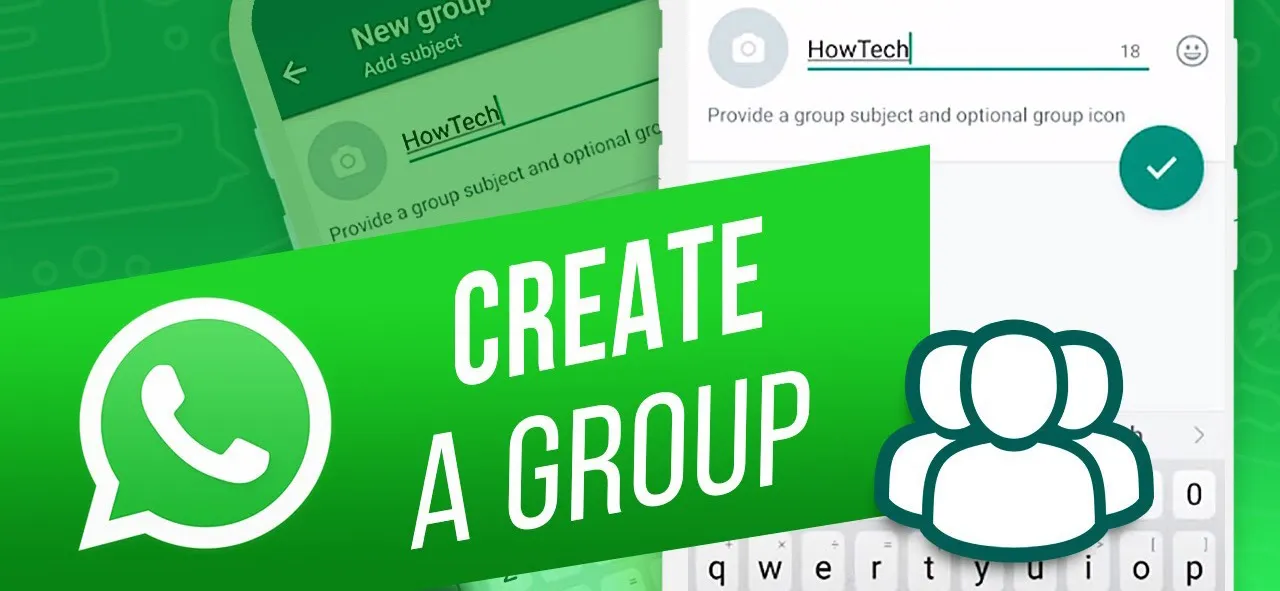
Next, you’ll need to choose an icon for your group and provide a name. The icon will serve as the group’s profile picture, while the name will identify the group to its members. Once you’ve chosen both, tap on the “Create” button.
Step 7: Start Chatting
Congratulations! You’ve successfully created a whatsapp group. You can now start chatting with the members, share media files, and customize group settings according to your preferences.
Tips for Managing WhatsApp Groups Effectively:
Now that you’ve created your WhatsApp group, here are some tips to help you manage it effectively:
- Set Clear Guidelines: Establish clear guidelines for group communication and behavior to ensure that all members are on the same page.
- Assign Admin Roles: Designate one or more admins who can manage group settings, add/remove members, and enforce rules when necessary.
- Use Announcements Wisely: Reserve the announcement feature for important updates or announcements to avoid overwhelming group members with unnecessary notifications.
- Respect Privacy: Always respect the privacy of group members and avoid sharing sensitive information without consent.
- Moderate Discussions: Monitor group discussions to prevent spam, off-topic conversations, or any form of harassment. Take action if necessary to maintain a positive and inclusive environment.
By following these tips, you can ensure that your WhatsApp group remains a valuable and productive platform for communication and collaboration.
Conclusion:
Creating a group on WhatsApp is a straightforward process that can greatly enhance your communication and collaboration with friends, family, or colleagues. By following the step-by-step guide provided in this article and implementing the tips for effective group management, you can create a thriving community where ideas are exchanged, plans are made, and relationships are strengthened. So go ahead, create your WhatsApp group today, and experience the power of instant messaging at your fingertips!