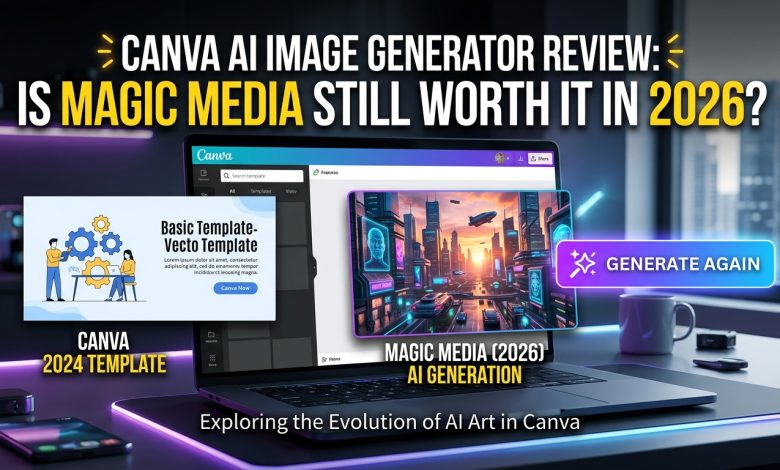
Typing a sentence and watching it turn into a finished graphic still feels like a small magic trick, even now that AI image tools are everywhere. Canva built that trick directly into its design platform with Magic Media, and in 2026, with AI image generation more crowded and more scrutinized than ever, the real question isn’t whether Canva’s AI image generator works.
It’s whether it’s still the smartest place to generate your images, or whether you’re better off pairing Canva with something built purely for image generation. This review breaks down exactly what Magic Media does, what it’s actually good at, where it falls short, and who should use it.
Read more: Canva AI Generator Review: Best Tool for Beginners in 2026?
Is Canva’s AI Image Generator Worth Using?
Canva’s AI image generator, Magic Media, is worth using if you’re already designing inside Canva and want fast, on-brand visuals without leaving the editor. It’s free to start, easy for beginners, and ideal for social posts, presentations, and marketing graphics. It’s not the best choice if you need maximum image quality, model choice, or high-resolution output; dedicated AI image generators outperform it on raw generation power.
What Is Canva’s AI Image Generator (Magic Media)?
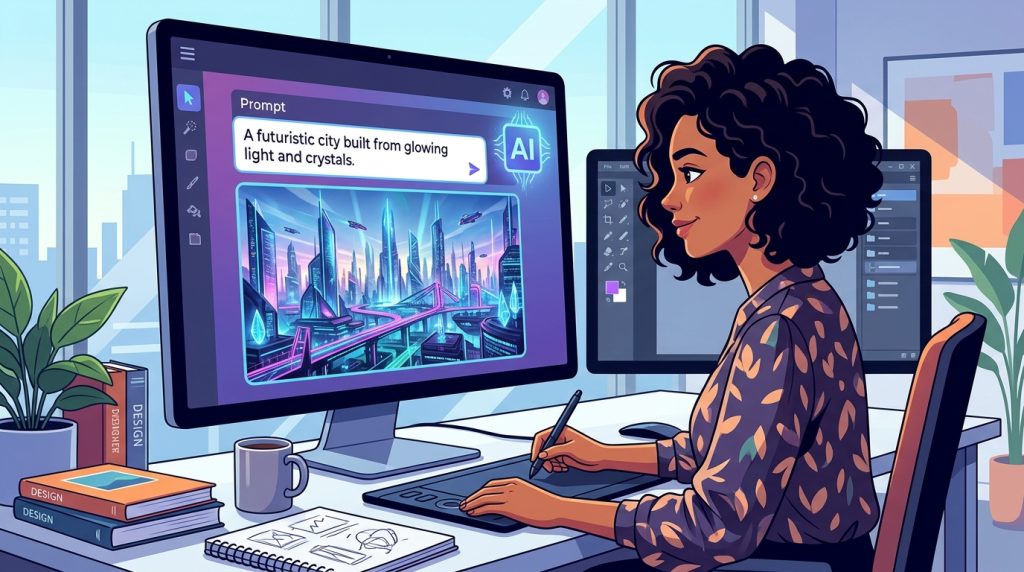
Magic Media is Canva’s built-in AI image generator, part of the broader Magic Studio suite of AI tools inside Canva’s design platform. Instead of opening a separate app, you type a text prompt directly inside a Canva design, and Magic Media turns that description into an image you can drop straight into your project.
Canva launched its first AI image generator in 2022, then folded it together with Magic Media, DALL·E, and Imagen into a unified AI image generation push by late 2023 as part of the Magic Studio rollout. That matters because it tells you Magic Media isn’t an isolated experiment bolted onto Canva; it’s been treated as core infrastructure for a platform that, by 2025, Canva said had grown to 260 million monthly users.
For most of those users, AI image generation isn’t a separate workflow; it’s just one more tool accessed from within a design they’re already building.
Under the hood, Canva doesn’t publicly confirm exactly which model powers every generation, though documentation and independent analysis point to a Stable Diffusion-based architecture with Canva’s own fine-tuning layered on top. You won’t get the model transparency or version control you’d find with a dedicated AI image generator, but you also don’t need to think about any of that to use it. You describe what you want, pick a style, and generate.
Core Features of Magic Media
Magic Media isn’t one button; it’s a small suite of related tools that cover different parts of the image-generation workflow:
- Text to Image: Standard prompt-to-image generation with style presets like Watercolor, Filmic, Neon, Color Pencil, and Retrowave.
- Text to Graphic: Generates icons, stickers, and illustrations rather than photo-style images, useful for branded visual elements.
- Create an Image, powered by Dream Lab: Lets you upload a reference image and generate new visuals inspired by its style, objects, or textures.
- Text to Video (Beta): Generates short AI video clips from a text prompt, with filters and transitions layered on afterward.
- Magic Edit and Magic Eraser: Edit or remove elements directly inside an AI-generated (or any) image without leaving Canva.
Each of these sits inside the same editor you’d use to build a slide deck or social post, which is at the core of Canva’s pitch: generation and design happen in a single continuous workflow rather than in two separate apps.
How to Use Canva’s AI Image Generator (Step-by-Step)
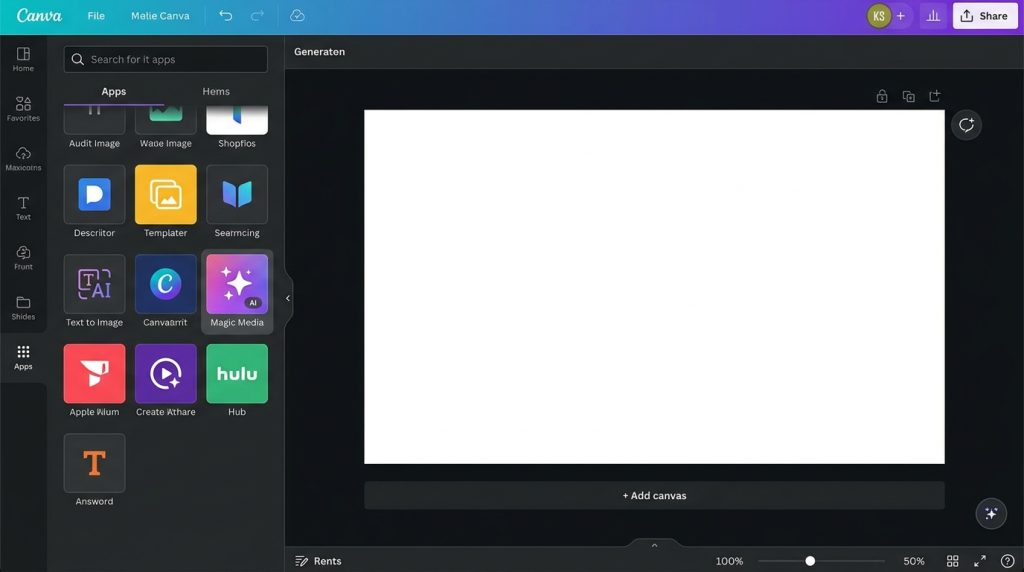
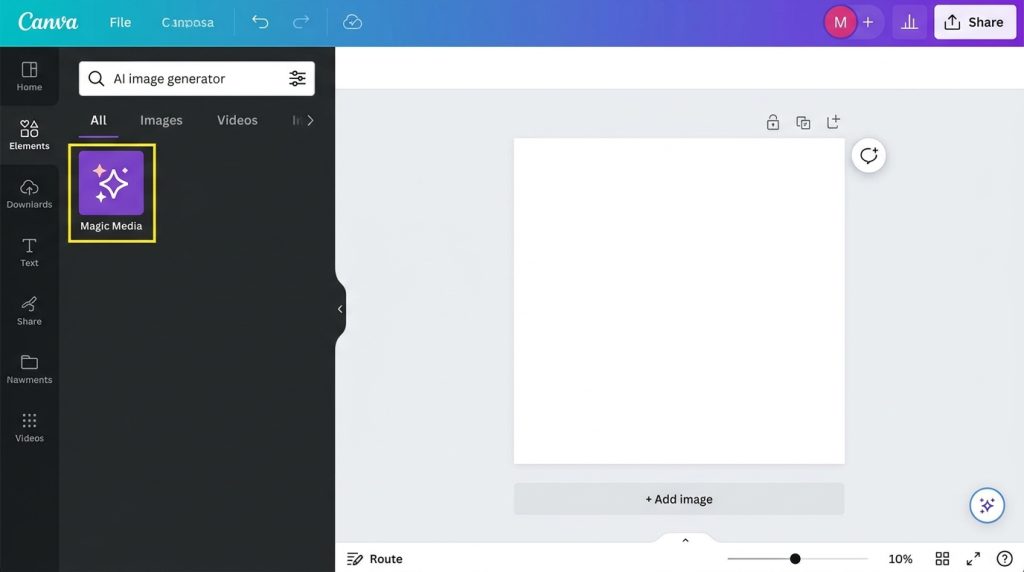
Getting your first AI image out of Canva takes less time than reading this section. Here’s the process from a blank canvas to a finished, downloadable image.
- Start a design. Open an existing Canva project or start fresh in the format you need — an Instagram square, a 16:9 slide, or a 9:16 story.
- Open Magic Media. Click “Elements” in the left sidebar, scroll to the AI image generator section, or search “Canva AI” from the homepage and select “Create an image.”
- Write a detailed prompt. Vague prompts produce generic results. “A cat” generates something forgettable; “a watercolor illustration of a cat sitting on a bookshelf, pastel tones” gives the model something to actually work with.
- Pick your output type and style. Choose between Images (photo-style) and Graphics (icon/illustration-style), then apply a style preset for a specific look.
- Generate and review. Magic Media produces a small batch of options; if none fit, regenerate or tweak the prompt.
- Refine inside the editor. Use Magic Edit to swap details, Magic Eraser to clean up distractions, or the photo editor to adjust lighting and color.
- Export or publish. Download as JPG, PNG, or PDF, drop it into a larger design, or schedule it straight to social through Canva’s built-in content planner.
That loop describes, generates, refines, and exports the entire workflow, and it’s deliberately short. Canva’s broader argument, echoed by co-founder and chief product officer Cameron Adams, is that AI should make creative work more accessible rather than more technical, and Magic Media’s interface reflects that philosophy at every step.
Prompting Tips That Actually Improve Results
The single biggest factor in Magic Media output quality isn’t the model, it’s the prompt. A few practical habits make a measurable difference:
- Be specific about style, lighting, and mood, not just subject matter. “Moody, low-light product photo on a dark wood table” beats “a coffee cup.”
- Keep prompts to roughly 10–20 words. Long, rambling prompts tend to confuse the model more than they help it.
- Name a style explicitly if you want a particular look; watercolor, cinematic, neon, and pencil sketch are all reliable presets to anchor a prompt around.
- Use Magic Edit for small fixes instead of regenerating from scratch when only one element of an otherwise good image is wrong.
- Treat the first batch as a draft, not a final answer. Regenerating with small prompt adjustments usually outperforms accepting the first result you see.
This matters more for beginners than for advanced users, since most disappointing Magic Media results stem from underspecified prompts rather than any real limitation in the tool itself.
Canva AI Image Generator Pricing and Plans
Magic Media is available on Canva’s free plan, with paid Pro, Teams, and Education/Nonprofit tiers unlocking higher generation limits and additional AI features. Canva’s own language around exact quotas is intentionally flexible; allowances have shifted as the AI stack has expanded from the original 2023 Magic Studio launch through several updates in 2025 and 2026, so it’s worth treating any specific number as a snapshot rather than a permanent figure.
What’s consistent across that shifting detail: free accounts get meaningful but limited monthly generations, enough to test whether Magic Media fits your workflow before paying anything. Pro accounts unlock substantially higher usage along with Pro-only features like Magic Eraser and background removal, which matter most once you’re producing social assets, pitch visuals, or product mockups on a weekly basis rather than occasionally.
Teams plans add the same generation access across multiple seats, which is a more relevant upgrade trigger for agencies and marketing teams than the raw image-generation allowance itself.
The practical takeaway for budgeting: if you’re already paying for Canva Pro for templates, brand kits, or team collaboration, Magic Media effectively comes bundled in as a strong bonus feature. If you’re evaluating whether to subscribe to Canva specifically for AI image generation, compare the free-tier resolution and generation caps against dedicated image generators before committing, since the calculation varies depending on which need is actually driving the purchase.
Canva AI Image Generator vs. Dedicated AI Image Tools
This is the comparison that matters most for anyone deciding where to actually generate their images. Canva is a design platform with built-in AI generation; tools like Midjourney, Adobe Firefly, and multi-model platforms are built from the ground up purely for image generation. That difference in design intent shows up in real, practical ways, such as output resolution, model choice, and the degree of control you have over the final result.
| Factor | Canva (Magic Media) | Dedicated AI Image Generators |
|---|---|---|
| Best for | Designers already working in Canva who need quick visuals | Users prioritizing maximum image quality and control |
| Model transparency | Undisclosed, believed Stable Diffusion-based | Often named and selectable (e.g., specific model versions) |
| Resolution | Capped lower on free tier | Frequently supports higher native resolution |
| Style control | Preset styles (Watercolor, Neon, Filmic, etc.) | Granular prompt and parameter control |
| Workflow | Generate and design in one editor | Generate separately, then import elsewhere |
| Learning curve | Very low | Moderate to high, depending on the tool |
| Pricing | Bundled into Canva’s design subscription | Usually a dedicated, separate subscription |
Independent comparisons of Magic Media against more specialized platforms have highlighted the same general pattern: Canva’s AI image generator works well for fast, integrated graphics, but it uses a single undisclosed model with limited resolution on the free tier and no parameter tuning, whereas dedicated platforms typically offer multiple models and higher-resolution output.
None of that makes Magic Media a bad tool; it makes it a different tool, optimized for speed and integration rather than raw generation power.
If your work genuinely depends on image quality, product photography mockups, fine art, or anything where resolution and fidelity drive the final result, generating in a dedicated tool and then bringing the finished image into Canva for layout and branding is a reasonable hybrid approach many marketing teams already use.
If your priorities are speed, consistency with your brand kit, and staying within one workspace, Magic Media is the more efficient path.
Pros and Cons of Canva’s AI Image Generator
Pros
- Built directly into the Canva editor — no app-switching required
- Genuinely beginner-friendly, with style presets that produce usable results fast
- The free tier is enough to evaluate the tool before paying for anything
- Pairs naturally with Magic Edit, Magic Eraser, and Canva’s full design library
- Useful across photos, graphics, and (in beta) short video clips
Cons
- Undisclosed underlying model limits transparency and predictability
- Lower maximum resolution on the free tier than several dedicated competitors
- No fine-grained parameter control for advanced users
- Generation limits and exact allowances shift over time without much notice
- Less artistic range than specialized tools like Midjourney for highly stylized work
Who Should (and Shouldn’t) Use Canva’s AI Image Generator
Magic Media is squarely built for people who already think in terms of finished designs rather than raw image files — marketers building a week’s worth of social posts, teachers making classroom materials, small business owners producing flyers and product graphics, and content creators who need a usable visual fast, not a portfolio piece.
It’s a weaker fit if your actual goal is image generation itself, building a visual portfolio, generating fine art, or producing the highest-resolution product renders. In that case, the lack of model choice and capped free-tier resolution will show up quickly, and a dedicated AI image generator will get you further per prompt.
Plenty of teams split the difference: one person generates high-fidelity images in a specialized tool, and the rest of the team assembles final designs in Canva using brand kits and templates, which keeps quality high without forcing the whole team to learn a second platform. For most everyday content needs covered in our broader guide to AI image generators, that hybrid approach tends to outperform betting on a single tool.
Frequently Asked Questions
Is Canva’s AI image generator actually free to use?
Yes. Magic Media is available on Canva’s free plan with a limited number of monthly generations. Canva Pro, Teams, and Education plans unlock higher usage limits along with Pro-only editing tools like Magic Eraser.
What AI model powers Canva’s Magic Media?
Canva doesn’t officially disclose the exact model. Based on output style and generation behavior, independent analysis suggests a Stable Diffusion-based architecture with Canva-specific fine-tuning layered on top.
Can I use Canva AI-generated images commercially?
Generally, yes, especially for Pro users, but copyright rules for AI-generated content vary by country, and Canva can’t grant rights to any recognizable people, characters, or brands that appear in a generated image.
How is Magic Media different from DALL·E or Midjourney?
Magic Media is built into Canva’s design editor for fast, integrated graphics. DALL·E and Midjourney are dedicated image generators offering more model control, often higher resolution, and more advanced artistic range.
Does Canva limit how many AI images I can generate?
Yes. Free accounts get a capped number of monthly generations, and paid plans raise that limit. Exact quotas have changed as Canva’s AI tools have expanded, so check current limits in your account.
Can Magic Media generate videos, not just images?
Yes, through Text to Video, currently in beta. It produces short AI-generated clips from a text prompt, with filters and transitions you can apply afterward inside the Canva editor.
Is Canva’s AI image generator good for beginners?
Yes. It’s widely considered one of the most accessible AI image tools available, since prompts, style presets, and editing tools all sit inside the same simple interface most users already know from Canva’s design platform.
What’s the biggest limitation of Canva’s AI image generator?
The free tier’s resolution cap and lack of model transparency are the most commonly cited limitations, especially compared to dedicated AI image platforms that offer multiple selectable models and higher native-resolution output.
The Bottom Line
Canva’s AI image generator earns its place by being exactly where you need it, not by being the most powerful image generator on the market. If your work already lives inside Canva, Magic Media removes a real piece of friction from your day, turning a blank canvas into a usable visual in seconds without ever opening a second tool.
If raw image quality and model control are what you’re actually optimizing for, treat Magic Media as the finishing tool rather than the generation engine, and bring in a dedicated AI image generator for the heavy lifting. Either way, it’s a genuinely useful feature in 2026, not just an add-on Canva attached to look current.